

Get Started
AI-powered regulatory intelligence platform for medical devices
Web Version -- No Installation Required
Use all features directly in your browser without installing any plugin. Generated documents can be downloaded as standard Word files (.docx) with formatting identical to the Word plugin output.
Recommended: Chrome, Edge, or Safari
Word Plugin Download
Install the Word plugin for deep integration with Microsoft Word: insert AI-generated content directly into your document, use AI tools (such as translation) to process document content, and access upcoming features for intelligent analysis and processing of selected text within Word -- capabilities not available in the web version.
The Word plugin requires Microsoft 365 (Office 365) or Word 2016 or later. Older Office versions (2013 and earlier) do not support Web Add-ins. If your Office version is too old or you don't have Word installed, use the web version above.
Choose the version that matches your region and operating system. Both versions connect to the same backend and your account works on either.
Current version: v0.5.0 (2026-04-27) · View changelog
Installation
Step 1: Extract the Installation Package (Windows)
After downloading, right-click the ZIP file and select "Extract All". Open the extracted folder and you will see the following files:
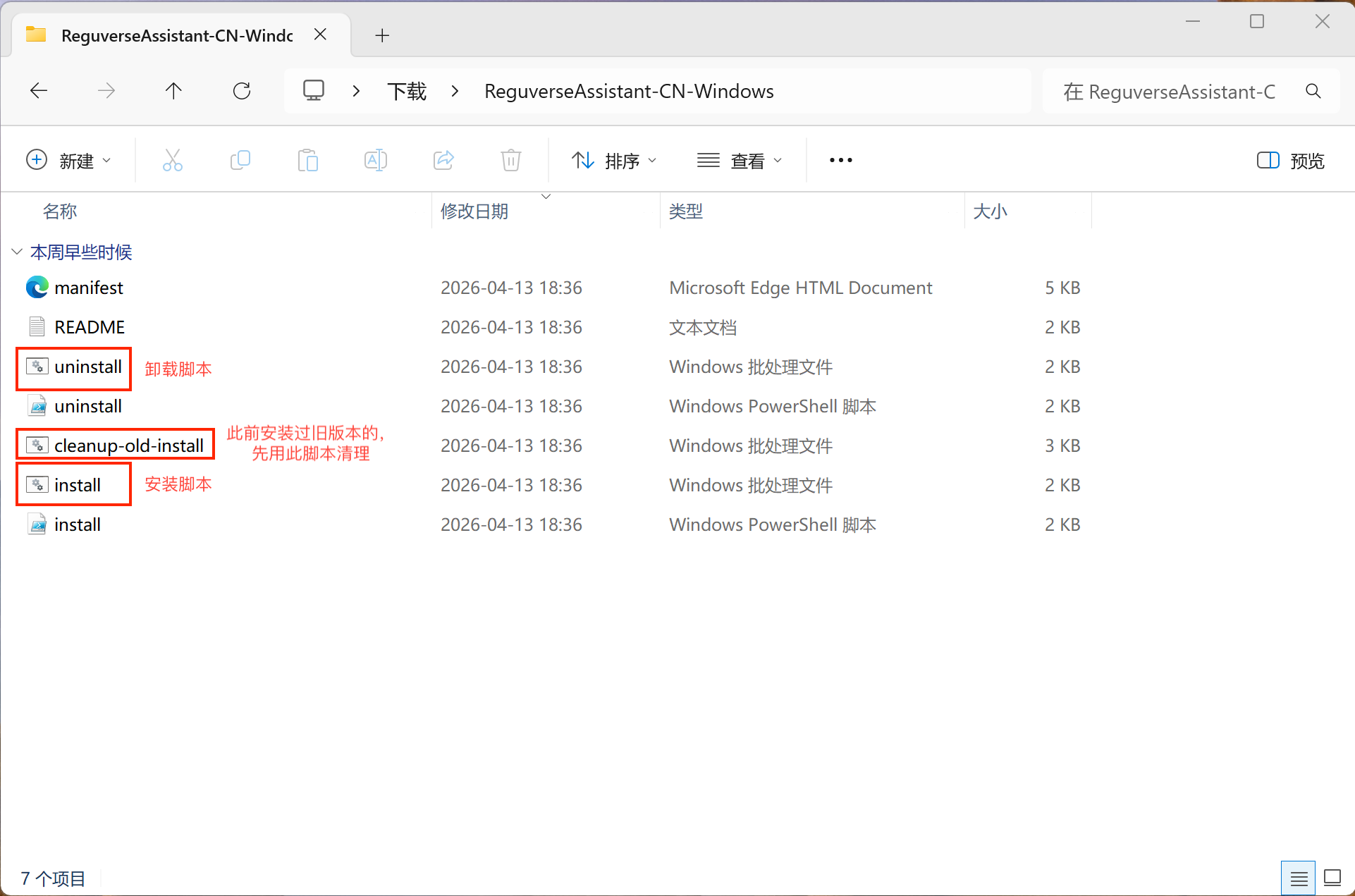
install.bat is the installer script, and cleanup-old-install.bat is used to remove previous installations.
Step 2: Run the Installer
- Double-click install.bat to run the installer. A cmd window will appear
- Wait for installation to complete. Press any key to close the window after seeing "Installation complete!"
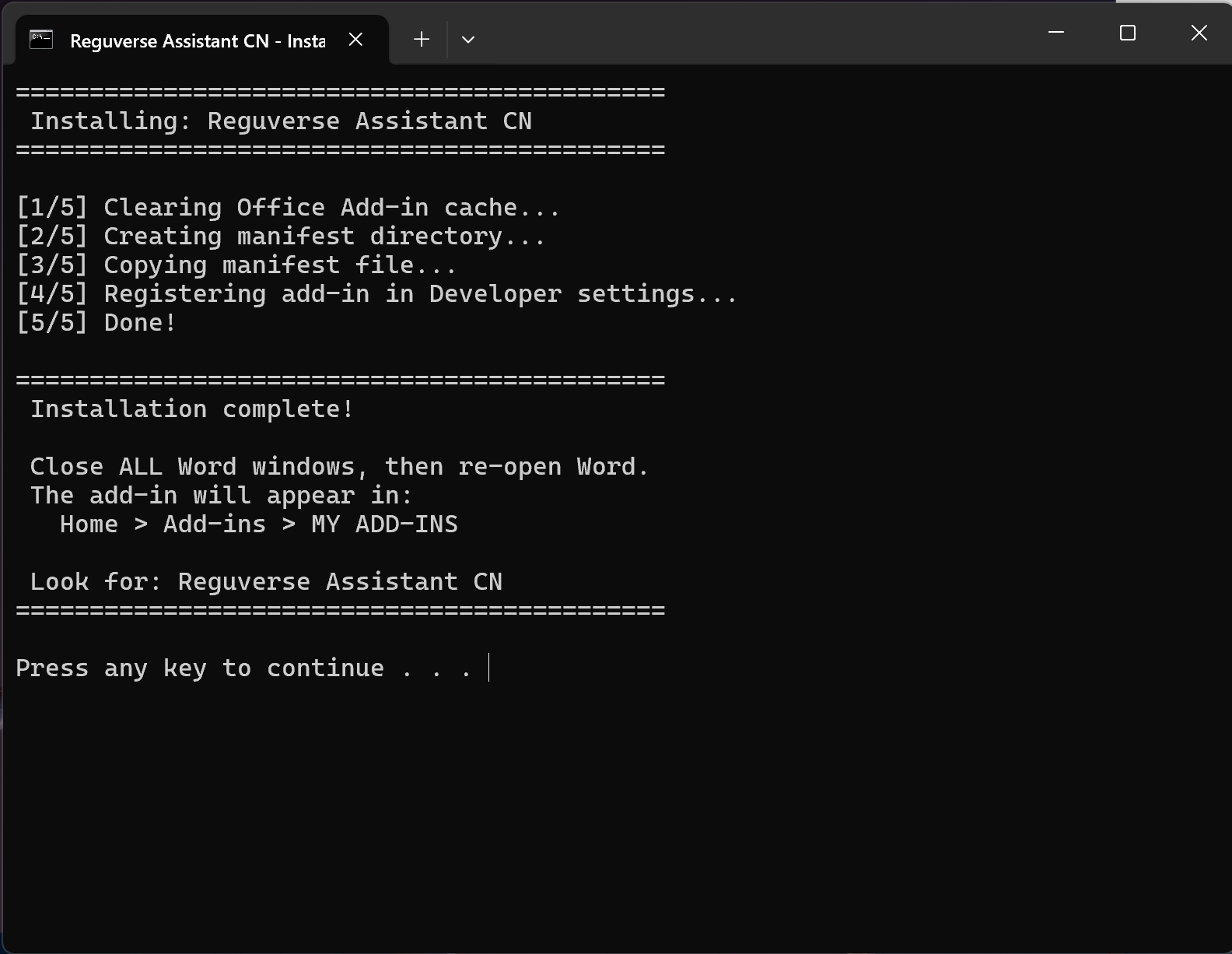
After installation, you must close ALL Word windows and then re-open Word.
Step 3: Open Reguverse Assistant in Word
- Open Word, click the Home tab
- Find the Add-ins button on the far right of the ribbon and click it
- In the dropdown panel, find Reguverse... under the Developer Add-ins section
- Click the Reguverse icon to open the assistant sidebar
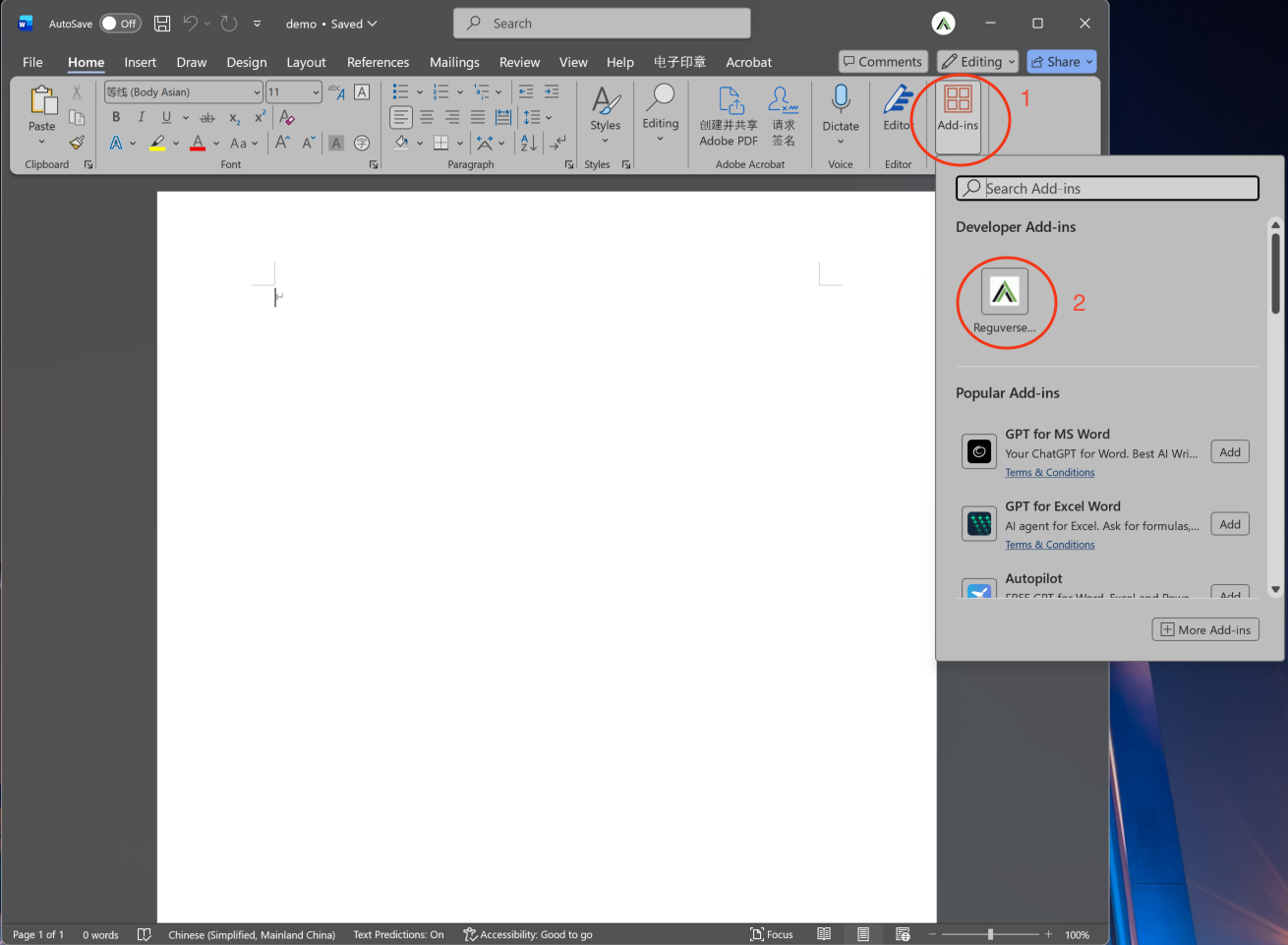
If you can't find the Add-ins button on the Home tab, you need to enable the Add-ins tab manually:
- Click File > Options
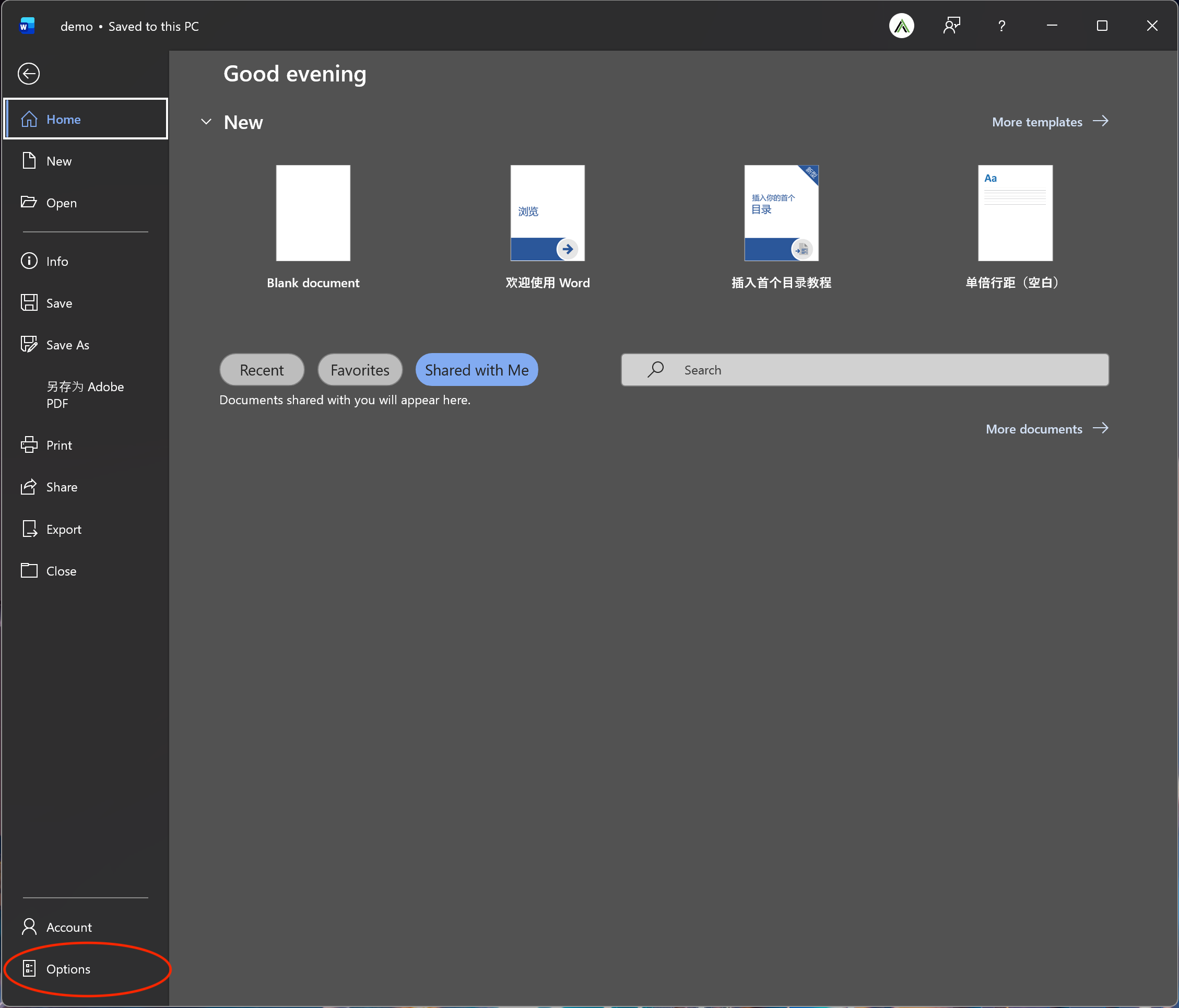
- In the left panel select Customize Ribbon, then check Add-ins in the right-side list
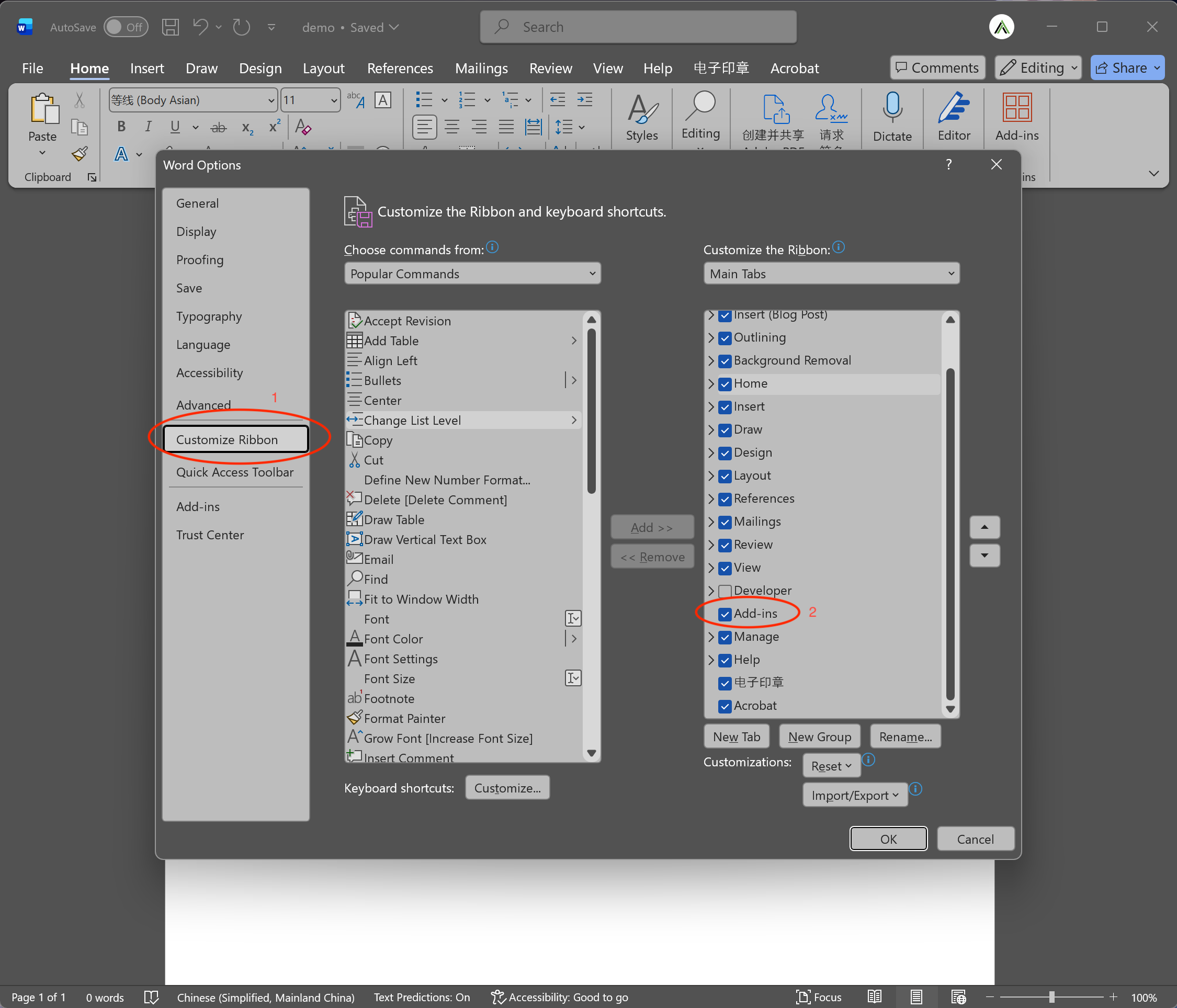
- Click OK to save
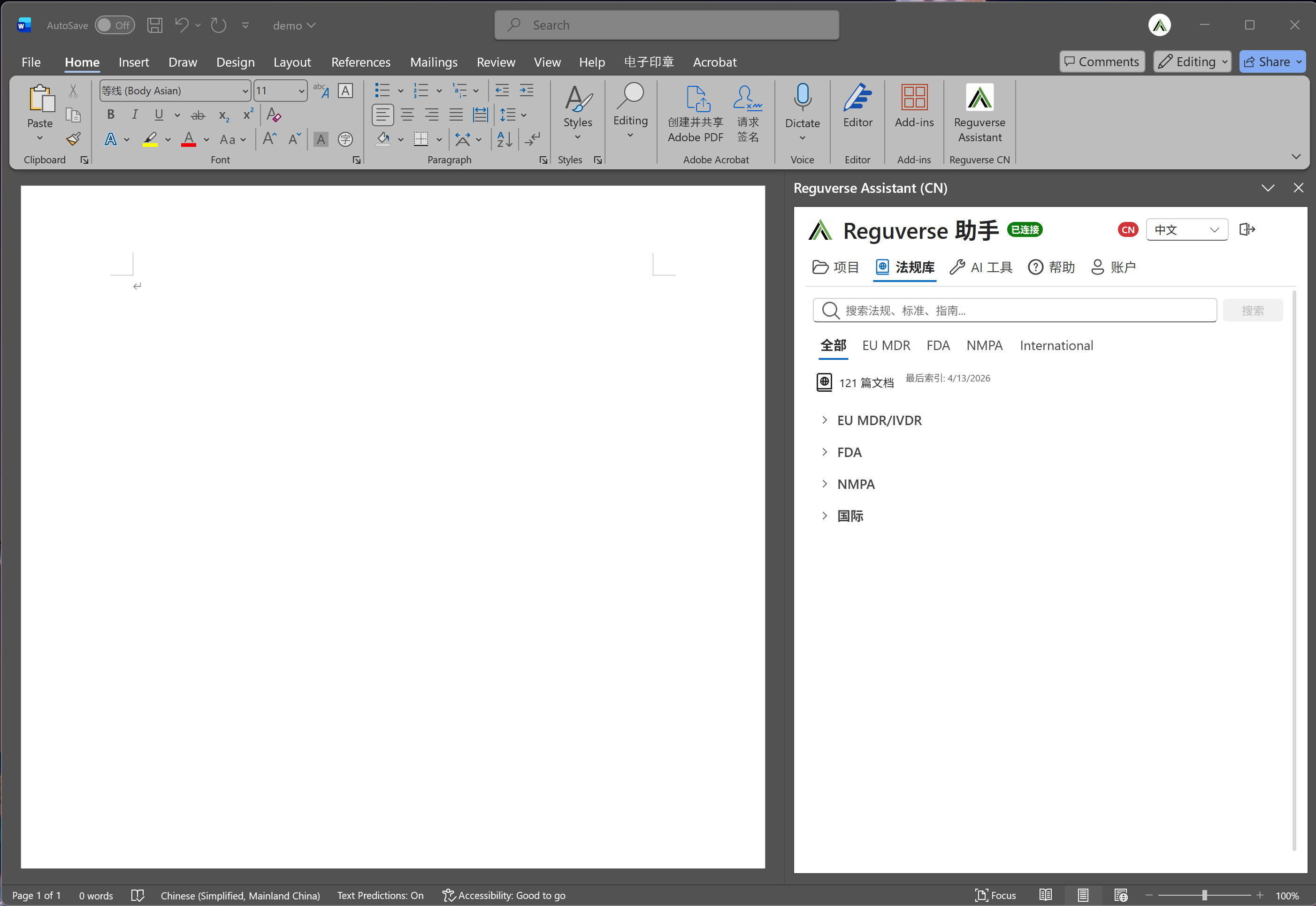
- Now the Add-ins tab will appear in the ribbon. Click it to see the Reguverse Assistant button, which will load the add-in into the toolbar and open the panel
macOS Installation
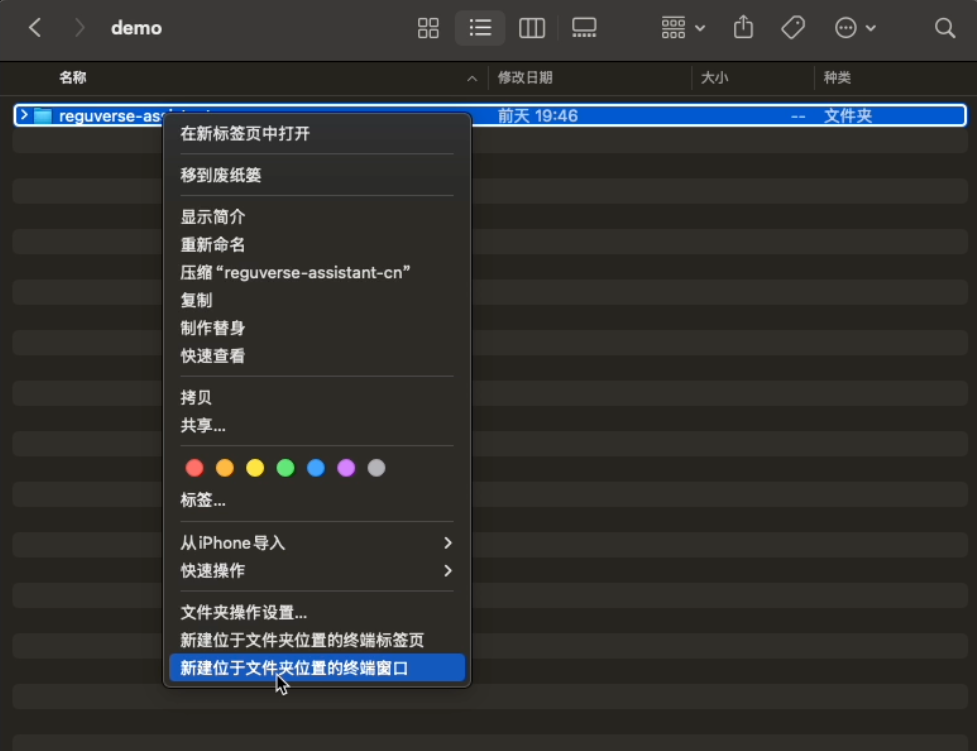
Locate the installer folder (e.g. reguverse-assistant), right-click and select "New Terminal at Folder"
Run the command:
bash install.sh
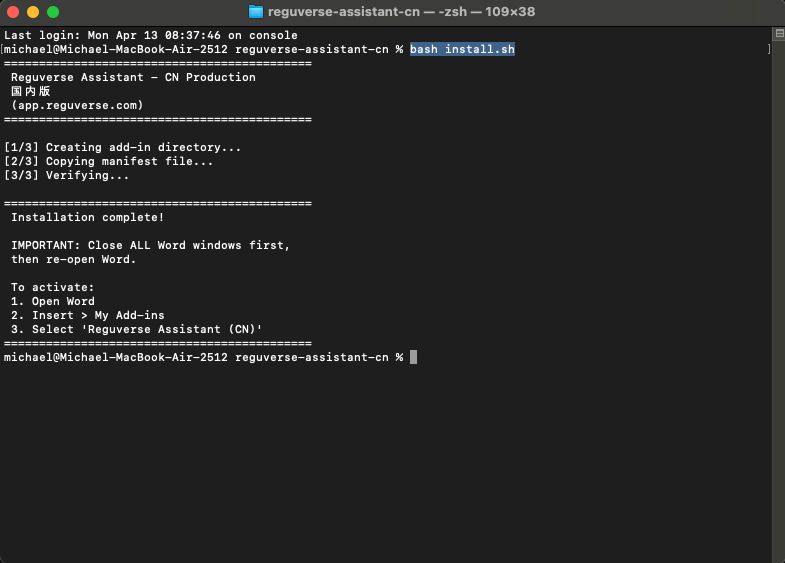
After installation, open Word. The Add-ins button usually appears automatically on the Home tab. If not, follow the Add-ins tab setup instructions above.
If you have a previous version installed, run cleanup-old-install.bat (included in the ZIP root) first to remove old installations, then run the new version's install.bat.
- Double-click
cleanup-old-install.bat(in the ZIP root folder) - Close ALL Word windows
- Run
install.batfrom the new version's folder - Re-open Word
Troubleshooting
Add-in not appearing after install (Windows)
- Close ALL Office applications (Word, Excel, Outlook, etc.)
- Run
cleanup-old-install.batto remove any old installation remnants - Run the installer again
- Re-open Word and check Home > Add-ins
Add-in shows old version
- Close ALL Word windows
- Open File Explorer and navigate to:
%LOCALAPPDATA%\Microsoft\Office\16.0\Wef\ - Delete the
webextensionsfolder if it exists - Run the installer again and restart Word
macOS: add-in not appearing
Make sure the wef directory exists:
~/Library/Containers/com.microsoft.Word/Data/Documents/wef/
If not, re-run the install script.
System Requirements
- Microsoft Word: Desktop version (Windows or macOS). Microsoft 365 or Office 2016+.
- Internet connection: Required for AI features and regulatory data access.
- Word for the web is not currently supported.
Free Trial
All users get a 1-month free trial with full feature access upon registration. No invite code required. Both the web version and Word plugin are available during the trial.
After the trial, choose a plan on the pricing page.